
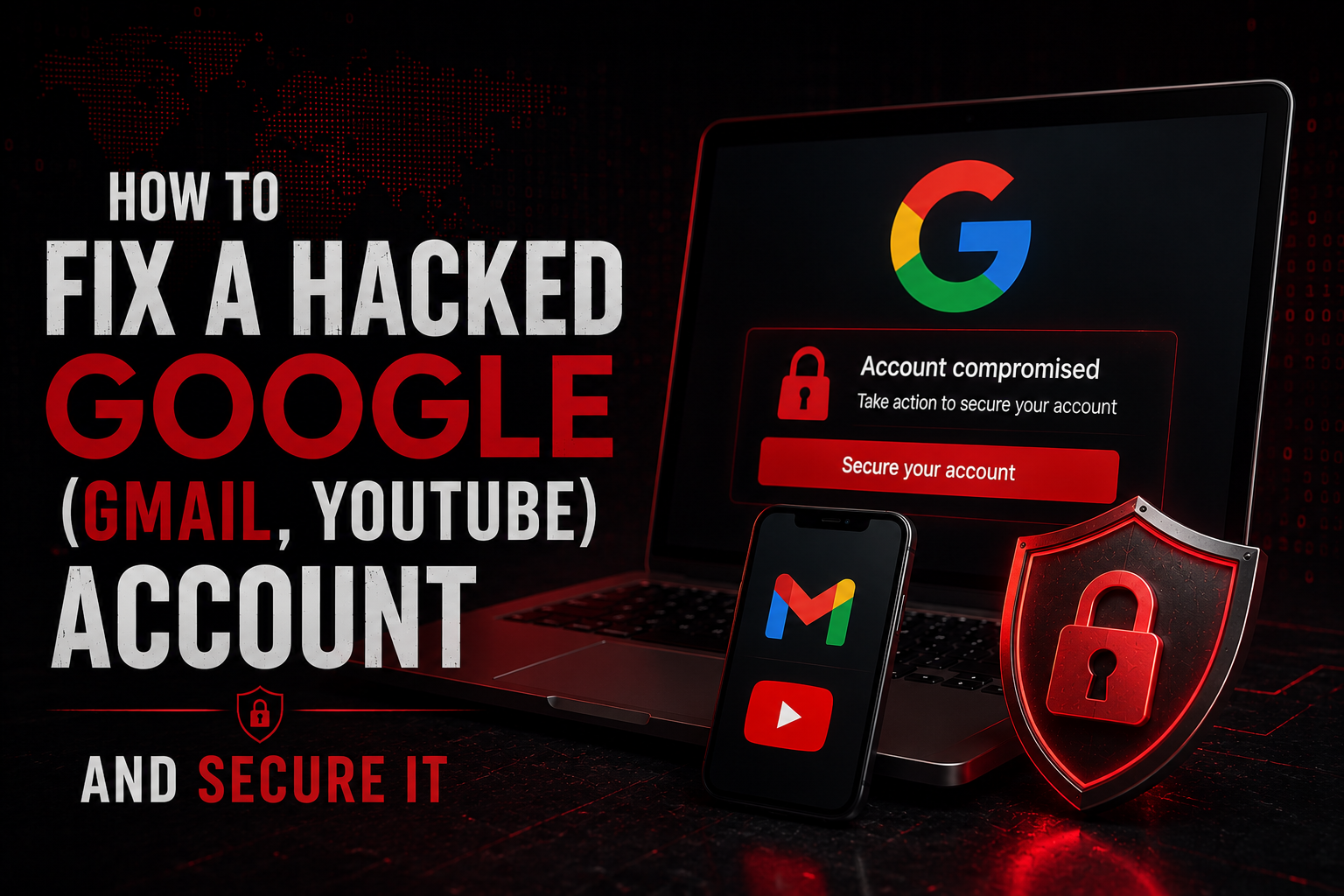


How to Fix a Hacked Google Account and Secure It
Complete Recovery Guide for Gmail, YouTube, and Google Services
- Critical First Steps
- Recognizing Compromise
- Account Recovery Methods
- YouTube Channel Recovery
- Post-Recovery Security Lockdown
- Advanced Protection Program
- Business/Workspace Accounts
- Prevention & Monitoring
Critical First Steps
Why Google Accounts Are Prime Targets
Your Google account is often the master key to your digital life:
- Password resets for other accounts go to Gmail
- YouTube channels can be monetized/sold
- Google Drive contains sensitive documents
- Google Pay stores payment methods
- Android devices are linked to Google accounts
Recovery difficulty: HIGH - Google has strict verification, making recovery challenging but also making accounts harder for attackers to fully compromise.
The Golden Hour (First 60 Minutes)
Priority 1: Stop the Bleeding
- Try to sign in from a trusted device
- If password works → Change it immediately
- If password fails → Begin recovery process NOW
- Check if recovery email/phone still works
Priority 2: Protect Other Accounts
- Assume other accounts are compromised if Gmail was accessed
- Change passwords on banking, social media, crypto exchanges
- Check for password reset emails sent from your account
Priority 3: Document Everything
- Screenshot unauthorized activity
- Note time of discovery
- Save any threatening messages
Recognizing Compromise
Gmail-Specific Indicators
| Warning Sign | What It Means | Check Location |
| "Sign-in attempt blocked" emails | Someone has your password | Security alerts in Gmail |
| Sent emails you didn't write | Account actively being used | Gmail Sent folder |
| Filters you didn't create | Emails being hidden/forwarded | Settings → Filters |
| Forwarding enabled | All emails copied to attacker | Settings → Forwarding |
| Login from new device | Successful unauthorized access | myaccount.google.com/notifications |
| Password changed email | Attacker locked you out | Check all email folders |
| Recovery email changed | Account takeover in progress | Account settings |
| 2FA disabled | Attacker removing protections | Security settings |
YouTube Channel Indicators
Critical Signs:
- Videos uploaded without your knowledge
- Channel name/description changed
- Monetization disabled by YouTube (hacker violated policies)
- Live streams you didn't start (crypto scam streams common)
- Community posts with phishing links
- Comments made on other channels
- Playlists created/deleted
Revenue Theft Signs:
- AdSense payments redirected
- Super Chat revenue missing
- Membership payments stopped
- Merchandise shelf modified
Google Account Universal Signs
- Google Drive files deleted/modified
- Google Photos accessed
- Google Calendar events created
- Google Pay transactions unauthorized
- Android device location accessed
- Google Docs shared without consent
- Contacts modified/deleted
Account Recovery Methods
Method 1: Standard Password Reset
Best For: You remember some account details, have access to recovery options
Process:
- Go to accounts.google.com/signin/recovery
- Enter your email address
- Answer security questions (if set)
- Enter last password you remember
- Verify via:
- SMS to recovery phone
- Email to recovery address
- Backup codes
- Trusted device prompt
Tips for Success:
- Use a device/location you've used before
- Answer questions as accurately as possible
- If you don't know, guess rather than skip
- Use the same browser if possible
Method 2: Account Recovery Form
Best For: Standard reset failed, account heavily compromised
Access:
- Go to accounts.google.com/signin/recovery
- Click Try another way repeatedly
- Eventually reach the recovery form
Information to Provide:
- Previous passwords (list all you remember)
- Account creation date (approximate)
- Frequently contacted email addresses
- Labels/folders created in Gmail
- Google services used
- Last successful login date
- Recovery email/phone previously set
Critical: Be as detailed as possible. Google's algorithm scores your responses.
Method 3: YouTube-Specific Recovery
If YouTube channel was hacked but Google account access remains:

- Go to studio.youtube.com
- Sign in with Google account
- Settings → Channel → Basic Info
- Revert unauthorized changes
- Settings → Permissions → Remove unauthorized managers
- Check Monetization → AdSense account linkage
If Channel Was Deleted:
- Visit support.google.com/youtube/contact/yt_appeals
- Select Channel termination appeal
- Explain account was compromised
- Provide evidence of ownership
- Wait 24-48 hours for review
Method 4: Hacked Account Recovery (Google Support)
When to Use: Recovery email/phone changed by attacker
Process:
- Go to support.google.com/accounts/contact/disabled2
- Fill out the account recovery form
- Provide:
- Original email address
- When you created the account
- Last password you remember
- Security question answers
- Recovery email originally set
Alternative Direct Contact:
- For US: support.google.com/accounts/contact/ac_recovery
- Fill out detailed form with all known information
- Include government ID if requested
Method 5: Legal/Escalation Path
For High-Value Accounts (Business, Creator with significant revenue):

- File Police Report - Identity theft/cybercrime
- Contact Google Legal - For business accounts
- Use Google One Support - If subscriber (priority support)
- Business/Workspace Admin - If Workspace account, admin can restore
YouTube Channel Recovery
Scenario A: Channel Still Accessible
Immediate Actions:
- YouTube Studio → Settings → Permissions
- Remove all unauthorized managers/editors
- Check Brand Account permissions
- Settings → Channel → Basic Info
- Revert name, description, handle
- Remove malicious links
- Content → Review all recent uploads
- Delete unauthorized videos
- Check for unlisted/private videos uploaded
- Monetization → AdSense
- Verify linked AdSense account is yours
- Check payment settings
- Community tab
- Delete unauthorized posts
- Check for spam comments made by "you"
Scenario B: Channel Terminated by YouTube
Appeal Process:
- Visit studio.youtube.com - look for termination notice
- Click Appeal or visit support.google.com/youtube/contact/yt_appeals
- Select I believe my channel was compromised
- Provide:
- Evidence of compromise (screenshots)
- Explanation of what happened
- Steps taken to secure account
- Wait for review (24 hours to 2 weeks)
If Appeal Denied:
- Submit additional appeal with more evidence
- Contact via Twitter @TeamYouTube
- Google One members: Use priority support
Scenario C: Channel Transferred to Another Account
Recovery Steps:
- Check if channel was moved to Brand Account
- Go to myaccount.google.com/brandaccounts
- Look for your channel
- If you have ownership, transfer back
- If ownership changed, contact YouTube support immediately
Post-Recovery Security Lockdown
Step 1: Complete Security Checkup
Run Google's Security Checkup:
- myaccount.google.com/security-checkup
- Review all sections:
- Your devices
- Recent security activity
- Third-party access
- Sign-in & recovery
Critical Actions:
- Remove unfamiliar devices
- Revoke suspicious app access
- Verify recovery options
- Check forwarding rules in Gmail
Step 2: Change Password & Enable 2FA
Password Requirements:
- Minimum 16 characters
- Unique to Google (never reused)
- Use password manager generated
Enable 2-Step Verification:
- myaccount.google.com/signinoptions/two-step-verification
- Click Get started
- Add phone number (SMS backup)
- Set up authenticator app:
- Google Authenticator
- Authy
- Microsoft Authenticator
- Save backup codes - print and store securely
- Add Security Keys (YubiKey recommended)
2FA Methods (in order of security):
- Security Keys (YubiKey) - Best
- Authenticator Apps - Excellent
- Google Prompts - Good
- SMS/Phone call - Acceptable backup only
Step 3: Gmail Security Hardening
Check Filters:
- Gmail → Settings (⚙️) → See all settings
- Filters and Blocked Addresses tab
- Delete any filters you didn't create
- Check for forwarding rules
Check Forwarding:
- Forwarding and POP/IMAP tab
- Ensure no unauthorized forwarding
- Disable POP/IMAP if not needed
Check Delegation:
- Accounts and Import tab
- Grant access to your account
- Remove unauthorized delegates
Check App Passwords:
- Security → App passwords
- Revoke all app passwords
- Recreate only for necessary apps
Check Connected Apps:
- myaccount.google.com/permissions
- Remove all unrecognized apps
- Review permissions for remaining apps
Step 4: YouTube-Specific Security
Channel Permissions:
- YouTube Studio → Settings → Permissions
- Remove all managers/editors
- Re-add only trusted people
- Enable 2FA requirement for all managers
Monetization Protection:

- Monetization → AdSense
- Verify AdSense account ownership
- Check payment threshold and method
- Review tax information
Content Protection:
- Content → Copyright → Copyright Match Tool
- Enable if eligible
- Set up automatic claims
Community Settings:
- Review Community tab settings
- Enable hold potentially inappropriate comments
- Set up blocked words list
Step 5: Google Account Universal Security
Google Drive:
- Check Shared with me for unauthorized shares
- Review Recent activity
- Check trash for deleted files
- Audit Computers syncing (disconnect unknown)
Google Photos:
- Review Recent highlights
- Check Shared albums
- Verify Partner sharing settings
Google Pay:
- Remove unauthorized payment methods
- Check transaction history
- Verify shipping addresses
- Review Activity tab
Google Calendar:
- Delete unauthorized events
- Check Other calendars subscribed
- Review sharing settings
- Remove unauthorized app access
Android Devices:
- Find My Device - check for unknown devices
- Security & location → Device admin apps
- Remove unauthorized device administrators
Advanced Protection Program
What Is APP?
Google's highest security tier for high-risk users:
- Journalists, activists, business leaders
- Anyone who can afford the inconvenience
Features:
- Mandatory security keys (phishing-proof)
- Blocked download of risky files
- Strict sharing restrictions
- Enhanced monitoring
Enrolling in APP
Requirements:
- Two security keys (USB/NFC/Bluetooth)
- Recovery phone number
- Recovery email address
Process:

- g.co/advancedprotection
- Click Get started
- Purchase security keys if needed
- Follow enrollment steps
- Register both security keys
Trade-offs:
- Cannot use IMAP/POP email
- Third-party apps require OAuth
- More authentication prompts
- File sharing restrictions
APP for YouTube Creators
Highly Recommended If:
- Channel generates significant revenue
- Large subscriber base
- High-profile channel
- Previous compromise attempts
Business/Workspace Accounts
Admin Recovery Powers
If Google Workspace Account:
- Admin can reset any user password
- Admin can restore deleted data (within 25 days)
- Admin can transfer YouTube channel ownership
- Admin can audit all user activity
Recovery Process:
- Contact your Google Workspace admin
- Admin resets password via admin console
- Admin audits account activity
- Admin restores any deleted data
- User sets up 2FA under admin supervision
Super Admin Account Compromised
Emergency Recovery:
- Use another super admin account
- Reset compromised admin password
- Audit admin activity logs
- Check for unauthorized user creation
- Review domain settings changes
If Only Super Admin:
- Contact Google Workspace support immediately
- Prove domain ownership
- Submit recovery request
- May require legal documentation
Prevention & Monitoring
Security Best Practices
Password Strategy:
- Use password manager (Bitwarden, 1Password)
- Unique 20+ character password for Google
- Change every 90 days or after any suspicion
- Never reuse across any accounts
2FA Implementation:
- Security key for primary device
- Authenticator app backup
- SMS only as last resort
- Store backup codes in multiple secure locations
Account Hygiene:
- Monthly security checkup
- Quarterly app permission audit
- Annual recovery information update
- Regular data download for backup
Monitoring Tools
Google Account Activity:
- myaccount.google.com/security - Weekly review
- Check Recent security activity
- Review Your devices monthly
- Monitor Third-party apps
YouTube Studio Analytics:
- Daily check for unauthorized uploads
- Monitor Realtime for unusual activity
- Check Revenue tab for anomalies
- Review Comments for spam
Gmail Monitoring:
- Set up filters for security alerts
- Enable Confidential Mode for sensitive emails
- Use + addressing to track email sources
- Regular Takeout data exports
Warning Systems
Enable All Notifications:
- New device sign-ins
- Password changes
- Recovery options changed
- Security alerts
- Unusual activity
- App access granted
Setup:
- myaccount.google.com/notifications
- Enable email notifications for all security events
- Enable phone notifications if available
- Check notification settings in YouTube Studio
Backup Strategy
Google Takeout (Quarterly):
- takeout.google.com
- Select all data categories
- Choose export frequency (create export)
- Download archive securely
- Store offline or encrypted cloud
Critical Data to Backup:
- Gmail (especially security emails)
- Google Drive documents
- YouTube videos (original files)
- Contacts
- Calendar events
- Photos
Emergency Response Checklist
First 15 Minutes
- Attempt sign-in from trusted device
- If successful: Change password immediately
- If failed: Begin recovery process
- Check recovery email/phone accessibility
- Document current state with screenshots
First Hour
- Complete account recovery or password change
- Enable/re-enable 2FA
- Log out all devices
- Check Gmail forwarding/filters
- Review recent account activity
- Check YouTube Studio for unauthorized changes
First 24 Hours
- Complete Security Checkup
- Audit all Google services
- Change passwords on linked accounts
- Warn contacts about potential phishing
- Check financial accounts
- File report if identity theft occurred
First Week
- Monitor account daily
- Review all shared documents
- Check YouTube monetization settings
- Update all recovery information
- Set up Advanced Protection if high-risk
- Create backup via Google Takeout
Summary
Why Google Account Security Is Critical
Your Google account is the linchpin of your digital identity. A compromised Google account can lead to:
- Complete identity theft
- Financial loss via Google Pay
- Channel deletion and revenue theft (YouTube)
- Business email compromise (Workspace)
- Access to all password reset emails
Key Takeaways
- Act Fast - The first hour is critical
- Document Everything - Evidence helps recovery
- Enable 2FA - Security keys if possible
- Regular Audits - Monthly security checkups
- Backup Data - Quarterly Takeout exports
- Monitor Constantly - Enable all notifications
- Never Reuse Passwords - Use password manager
- Consider APP - For high-value accounts
Additional Resources
- Google Account Help: support.google.com/accounts
- YouTube Creator Support: support.google.com/youtube
- Security Checkup: myaccount.google.com/security-checkup
- Advanced Protection: g.co/advancedprotection
- Account Recovery: accounts.google.com/signin/recovery
- YouTube Appeals: support.google.com/youtube/contact/yt_appeals
This guide is for educational and fraud awareness purposes. All techniques described are defensive security measures to protect against unauthorized account access and digital identity theft.
Remember: Your Google account is likely your most valuable digital asset. Treat it with maximum security - enable Advanced Protection if you can, use security keys, and monitor constantly. The inconvenience of strong security is nothing compared to losing your digital identity.