
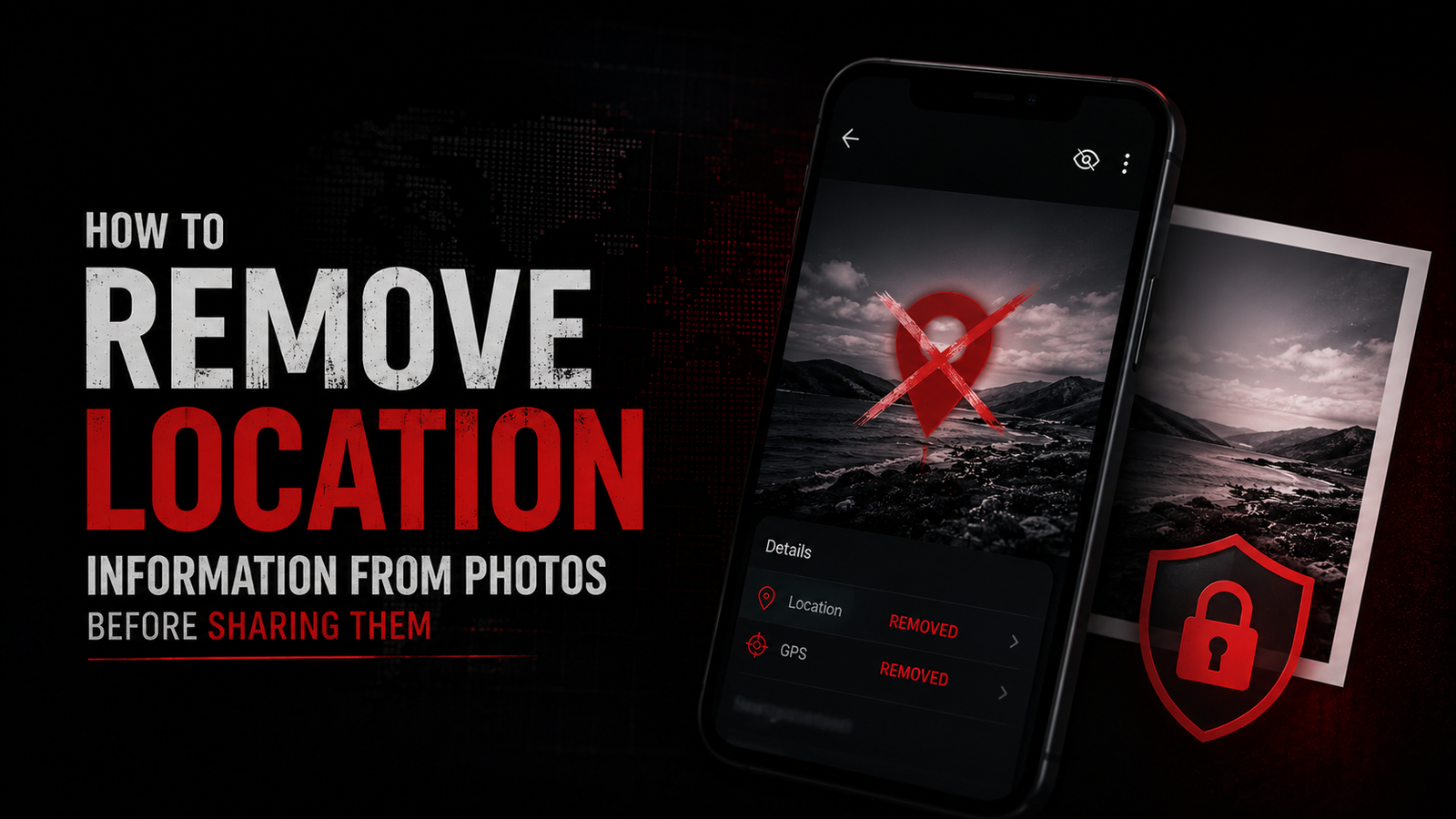


How to Remove Location Information from Photos Before Sharing Them
Published: August 9, 2026 | Category: Privacy & Digital Security | Level: Beginner to Intermediate
Executive Summary
Every photo you take with a smartphone contains hidden EXIF metadata—including precise GPS coordinates, timestamps, camera model, and even your name. When shared online, this data creates a digital trail that can reveal your home address, daily routines, and physical locations.
The Risk: Cybercriminals, stalkers, and data brokers can extract this information to track your movements, determine when you're away from home, or build detailed profiles for social engineering attacks.
The Solution: Removing metadata before sharing is simple and essential for privacy protection.
Part 1: Understanding Photo Metadata (EXIF Data)
What is EXIF?
EXIF (Exchangeable Image File Format) is a standard that embeds metadata directly into image files. This data is created automatically by cameras and smartphones.
What Information is Stored?
Typical EXIF Data in Your Photos:
┌─ Image Information ─┐
│ • Camera model
│ • Lens specifications
│ • Exposure settings
│ • Date/time taken
│ • Image dimensions
│ • File format
└─────────────────────┘
┌─ Location Data (GPS) ─┐
│ • Latitude
│ • Longitude
│ • Altitude
│ • Compass direction
│ • Location accuracy
└───────────────────────┘
┌─ Device Information ─┐
│ • Device name
│ • Serial number
│ • Software version
│ • Owner name (if set)
└───────────────────────┘
Real-World Privacy Risks
| Scenario | Risk | Consequence |
| Home Photo | GPS reveals exact home address | Physical targeting, burglary |
| Vacation Photos | Shows when house is empty | Home invasion timing |
| Gym/Work Photos | Reveals daily routines | Stalking, harassment |
| Children's Photos | Tracks school locations | Child safety risks |
| Work Documents | Leaks office locations | Corporate espionage |
Part 2: Checking Your Photos for Location Data
Windows Method
Using File Explorer:
Step 1: Locate Image- Right-click on photo
- Select "Properties"
Step 2: View Metadata
- Click "Details" tab
- Scroll to "GPS" section
Step 3: Check for Location
- If coordinates present → Location embedded
- If no GPS section → Location not stored
Example GPS Data:
Latitude: 40.7128° N
Longitude: 74.0060° W
(That's New York City)
Using PowerShell (Advanced):
powershell
# Check EXIF data via PowerShellGet-ChildItem "photo.jpg" | Select-Object -ExpandProperty FullName | ForEach-Object { $image = [System.Drawing.Image]::FromFile($_) $propertyItems = $image.PropertyItems $propertyItems | Where-Object { $_.Id -eq 0x0002 -or $_.Id -eq 0x0004 } | Select-Object Id, Value $image.Dispose()}
macOS Method
Using Preview:
Step 1: Open Image- Double-click photo in Finder
- Opens in Preview
Step 2: Access Inspector
- Tools → Show Inspector (⌘+I)
- Or press ⌘+I
Step 3: Check GPS
- Click "i" tab (info)
- Look for "GPS" section
- Shows coordinates if present
Using Terminal:
bash
# Install exiftool (if not present)brew install exiftool# Check metadataexiftool photo.jpg | grep -i gps# Output example:GPS Latitude : 40 deg 42' 46.08" NGPS Longitude : 74 deg 0' 21.60" WGPS Position : 40 deg 42' 46.08" N, 74 deg 0' 21.60" W
Mobile Method (iOS)
Step 1: Open Photos App- Select photo to check
Step 2: View Details
- Swipe up on photo
- Or tap "i" icon

Step 3: Check Location
- Look for map thumbnail
- Shows "Location" with address
- Tap to see exact coordinates
If map visible → Location embedded
If no map → Location not stored
Mobile Method (Android)
Step 1: Open Gallery/Photos- Select photo
Step 2: Access Details
- Tap three dots menu
- Select "Details" or "Info"
Step 3: Check Metadata
- Look for "Location" field
- Shows coordinates if present
Alternative: Use EXIF viewer app
- Install "Photo EXIF Editor"
- Open photo in app
- View complete metadata
Part 3: Removing Location Data - Platform by Platform
Method 1: Windows (Built-in Tools)
Using File Explorer (Windows 10/11):
Step 1: Select Photos- Select multiple images (Ctrl+Click)
- Or select single image
Step 2: Access Properties
- Right-click → Properties
- Click "Details" tab
Step 3: Remove Properties
- Click "Remove Properties and Personal Information"
- Link at bottom of window
Step 4: Choose Removal Method
Option A: "Create a copy with all possible properties removed"
Option B: "Remove the following properties from this file"
Step 5: Select Properties to Remove
☑ GPS
☑ Camera model
☑ Date taken
☑ Author
☑ Copyright
☑ [Select all sensitive data]
Step 6: Apply Changes
- Click "OK"
- Creates clean copy or modifies original
Using Photos App (Windows 11):
Step 1: Open Photos App- Launch Windows Photos
Step 2: Select Image
- Open photo to edit
Step 3: Access Properties
- Click three dots menu
- Select "File information"
Step 4: Remove Location
- Click "Remove location" if present
- Save copy without metadata
Method 2: macOS (Built-in Tools)
Using Preview:
Step 1: Open Image- Open photo in Preview
Step 2: Export Without Metadata
- File → Export
- Or ⌘+Shift+S

Step 3: Configure Export
- Format: JPEG/PNG
- Quality: Maximum
- ☑ IMPORTANT: Uncheck "Include metadata"
Step 4: Save
- Choose location
- Click "Save"
- New file has no EXIF data
Using Photos App:
Step 1: Select Photo- Open Photos app
- Select image
Step 2: Export
- File → Export → Export [X] Photos
Step 3: Configure Export
- Photo Kind: JPEG
- ☑ Uncheck "Include location information"
- ☑ Uncheck "Include metadata"
Step 4: Export
- Choose folder
- Click "Export"
Method 3: iOS (iPhone/iPad)
Using Shortcuts App (Recommended):
Step 1: Create Shortcut- Open Shortcuts app
- Tap "+" to create new
Step 2: Add Actions
Search and add:
- "Select Photos"
- "Strip EXIF Data" (or "Convert Image")
- "Save to Photo Album"
Step 3: Configure
- Allow access to photos
- Set conversion to JPEG
- Quality: 100%
Step 4: Run Shortcut
- Select photos to clean
- Shortcut removes metadata
- Saves clean copy to album
Step 5: Use Shortcut
- Run before sharing
- Always share cleaned version
Manual Method (Settings):
Prevent Future Geotagging:
Settings → Privacy & Security → Location Services
├─ Camera → Never
├─ Photos → Never
└─ [Disable for all photo apps]
This prevents new photos from having location data.
Does NOT remove existing photo metadata.
Method 4: Android
Using Built-in Gallery (Samsung/Google):
Step 1: Open Photo- Launch Gallery/Photos app
- Select image
Step 2: Edit Details
- Tap three dots → Details
- Or "i" icon
Step 3: Remove Location
- Tap location if shown
- Select "Remove location"
- Confirm removal
Note: Not all Android versions support this.
Third-party app may be required.
Using Google Photos:
Step 1: Open Google Photos- Select photo
Step 2: Access Info
- Swipe up or tap "i"
Step 3: Remove Location
- Tap location shown on map
- Select "Remove location"
- Confirm
Limitation: Only removes from Google Photos metadata.
Original file may still contain EXIF data.
Part 4: Third-Party Tools and Apps
Desktop Applications
| Tool | Platform | Cost | Features |
| ExifTool | Windows/Mac/Linux | Free | Command-line, batch processing |
| Exif Pilot | Windows | Free/Paid | GUI, bulk editing |
| ImageOptim | Mac | Free | Drag-and-drop, batch |
| Metadata Cleaner | Linux | Free | Privacy-focused |
| Adobe Bridge | Windows/Mac | Paid | Professional workflow |
ExifTool (Power User)
Installation:
bash
# Windows: Download from exiftool.org# Mac: brew install exiftool# Linux: sudo apt install libimage-exiftool-perl
Basic Commands:
bash
# View all metadataexiftool photo.jpg
# Remove all metadataexiftool -all= photo.jpg# Remove only GPS dataexiftool -gps:all= photo.jpg# Batch process folderexiftool -all= /path/to/folder/*.jpg# Create backup before removingexiftool -all= -o cleaned/ photo.jpg# Remove metadata from all images recursivelyexiftool -r -all= /path/to/folder/
Advanced Usage:
bash
# Remove specific tags onlyexiftool -GPSLatitude= -GPSLongitude= photo.jpg# Strip everything except image dimensionsexiftool -all= --exif:ImageSize photo.jpg# Process with progress barexiftool -progress -all= *.jpg# Verify removalexiftool -gps:all photo.jpg# Should return nothing if successful
ImageOptim (Mac - User Friendly)
Step 1: Download- Visit imageoptim.com
- Download and install
Step 2: Configure
- Preferences → Strip metadata
- Enable "Strip metadata" option
- Enable "Strip GPS" option
Step 3: Use
- Drag photos to ImageOptim window
- Automatically removes metadata
- Saves optimized file
Step 4: Batch Process
- Drag entire folder
- Processes all images
- Maintains folder structure
Mobile Apps
iOS Apps
| App | Cost | Rating | Features |
| Metapho | Free/Paid | 4.7★ | View and remove metadata |
| Exif Metadata | Free | 4.5★ | Simple interface |
| ViewExif | $0.99 | 4.6★ | Quick viewing |
| Photo Investigator | Free | 4.4★ | Detailed analysis |
Metapho Usage:
Step 1: Install- Download from App Store
Step 2: Grant Access
- Allow access to photos
Step 3: Select Photos
- Browse photo library
- Select images to clean
Step 4: Remove Metadata
- Tap "Edit" button

- Toggle off "Keep Metadata"
- Save clean copy
Step 5: Share
- Use share sheet
- Metapho automatically offers clean version
Android Apps
| App | Cost | Rating | Features |
| Photo Exif Editor | Free/Paid | 4.3★ | Edit/remove EXIF |
| Scrambled Exif | Free | 4.5★ | Automatic removal |
| Exif Eraser | Free | 4.2★ | Simple batch removal |
| Photo Metadata Remover | Free | 4.1★ | One-tap cleaning |
Scrambled Exif (Recommended):
Step 1: Install- Download from Play Store
Step 2: Configure
- Open app settings
- Enable "Auto-remove on share"
Step 3: Share Photos
- Select photo in Gallery
- Tap "Share"
- Choose "Scrambled Exif"
- App removes metadata automatically
- Passes to selected app
Step 4: Verify
- Open processed photo
- Check details - no location shown
Part 5: Online Tools (No Installation)
Web-Based Metadata Removers
| Service | URL | Limitations | Security |
| Exif Purge | exifpurge.com | 50MB max | Client-side processing |
| Pic2Map | pic2map.com | View only | Server-side |
| Exif Remover | exifremover.com | 10 files at once | HTTPS encrypted |
| IMG Online | imgonline.tools | Various tools | Basic HTTPS |
Using Exif Purge:
Step 1: Visit Website- Go to exifpurge.com
Step 2: Upload Photo
- Drag and drop image
- Or click to browse
Step 3: Process
- Automatic metadata removal
- Happens in browser (client-side)
Step 4: Download
- Click "Download clean image"
- Save to computer
Step 5: Verify
- Check properties - no location data
- Safe to share
Security Note:
- Client-side = file doesn't leave your computer
- Safer than server-side processing
- Still verify site legitimacy
Part 6: Social Media Specific Guides
Automatic Stripping:
Facebook automatically strips EXIF data from uploaded photos.However, location may be added if you:
- Check in at location
- Add location tag manually
- Enable location services
Best Practice:
- Remove metadata before upload
- Don't add location tags
- Disable location in Facebook app
Automatic Stripping:
Instagram removes most EXIF data automatically.BUT: If you geotag location, that data is stored.
To ensure privacy:
1. Remove EXIF before uploading
2. Don't add location tags
3. Don't enable "Add to map"
4. Keep account private if possible
Twitter/X
Automatic Stripping:
Twitter strips EXIF data from displayed images.Original file may retain metadata in archives.
Best Practice:
- Clean images before upload
- Don't share location in tweets
- Disable location services in app
Automatic Compression:
WhatsApp compresses images and removes most metadata.However, "Document" option sends original file with metadata.
Safe Sharing:

- Send as "Photo" (compressed, cleaned)
- Avoid "Document" option for privacy
- Disable location in WhatsApp settings
Part 7: Prevention - Disabling Geotagging
iOS Prevention
Settings → Privacy & Security → Location Services
Disable for Camera:
1. Scroll to "Camera"
2. Tap "Camera"
3. Select "Never"
Disable for Photos:
1. Scroll to "Photos"
2. Tap "Photos"
3. Select "Never"
Global Disable:
1. Toggle "Location Services" OFF
2. Or manage per app
Android Prevention
Method varies by manufacturer:
Samsung:
Camera → Settings → Location tags → OFF
Google Pixel:
Camera → Settings → Save location → OFF
OnePlus:
Camera → Settings → Location → OFF
Xiaomi:
Camera → Settings → Save location info → OFF
Universal (Android 10+):
Settings → Location → App permissions → Camera → Deny
Camera App Settings
Third-Party Camera Apps:
Open Camera (Android):Settings → Camera → Disable "Store location"
ProCam (iOS):
Settings → Metadata → Disable "Location"
Halide (iOS):
Settings → EXIF → Disable "Location"
VSCO:
Settings → Privacy → Disable "Location"
Part 8: Enterprise and Batch Solutions
For Organizations
Group Policy (Windows):
powershell
# Deploy EXIF removal across organization# PowerShell script for IT administrators# Remove metadata from all images in shared folders$folders = @("\\server\shared\photos", "\\server\marketing")foreach ($folder in $folders) { Get-ChildItem -Path $folder -Recurse -Include *.jpg,*.jpeg,*.png | ForEach-Object { # Remove all metadata exiftool -all= $_.FullName # Log action Add-Content -Path "\\server\logs\exif-removal.log" -Value "$(Get-Date): Cleaned $($_.FullName)" }}# Schedule as daily task# Run during off-hours
macOS Management (MDM):
xml
<!-- Configuration Profile for Jamf/Intune --><dict> <key>PayloadContent</key> <array> <dict> <key>PayloadType</key> <string>com.apple.preference.security</string> <key>PayloadIdentifier</key> <string>com.company.disable-location</string> <key>PayloadUUID</key> <string>LOCATION-DISABLE-UUID</string> <key>PayloadEnabled</key> <true/> <key>PayloadDisplayName</key> <string>Disable Location Services</string> </dict> </array></dict>
Automated Workflows
Using Hazel (Mac):
Rule: "Auto-Clean Photo Metadata"
When:
- File added to ~/Pictures/To Share
Do:
- Run shell script: exiftool -all= "$1"
- Move to ~/Pictures/Cleaned
Result:
- All photos automatically cleaned
- Original preserved in To Share
- Clean version ready for sharing
Using Folder Actions (Windows):
powershell
# Watch folder and auto-clean new images$watcher = New-Object System.IO.FileSystemWatcher$watcher.Path = "C:\Users\Username\Pictures\ToClean"$watcher.Filter = "*.jpg"$watcher.IncludeSubdirectories = $true$action = { $path = $Event.SourceEventArgs.FullPath exiftool -all= $path Write-Host "Cleaned: $path"}Register-ObjectEvent $watcher "Created" -Action $action
Part 9: Verification - Confirming Metadata Removal
How to Verify
Windows:
Step 1: Right-click cleaned photoStep 2: Properties → Details tab
Step 3: Check for:
✓ No GPS section
✓ No camera model
✓ No date taken (or generic)
✓ No author/copyright
If these fields are empty or show "Not specified" → Success
Mac:
Step 1: Open in PreviewStep 2: Tools → Show Inspector (⌘+I)
Step 3: Check:
✓ No GPS coordinates
✓ No camera information
✓ "Created" date may remain (file system)
✓ "Modified" shows cleaning date
If GPS section missing → Success
Mobile:
iOS:- Photos app → Share → Save to Files
- Check details in Files app
- No location = Success
Android:
- Gallery → Details
- No location field = Success
Online Verification Tools
ExifData.com:- Upload cleaned photo
- Should show minimal data
- Only file size, dimensions
- No location, no camera info
Jeffrey's Image Metadata Viewer:
- Browser-based
- Shows all metadata
- Verify GPS section absent
Part 10: Quick Reference Guide
Before Sharing Checklist
□ Check photo for location data□ Remove EXIF metadata
□ Verify removal successful
□ Check for visual clues (landmarks, street signs)
□ Consider what's visible in background
□ Remove if unsure
□ Use cleaned version only
Emergency Privacy Steps
If you accidentally shared location data:
1. Delete the post immediately
2. Ask platforms to remove from caches
3. Check if archived/copied
4. Monitor for suspicious activity
5. Review other recent shares
6. Update privacy settings
7. Enable stronger protections
Tools Summary
| Platform | Recommended Tool | Cost |
| Windows | ExifTool CLI or Exif Pilot | Free |
| Mac | ImageOptim or Preview Export | Free |
| iOS | Metapho or Shortcuts | Free |
| Android | Scrambled Exif | Free |
| Web | Exif Purge | Free |
| Batch | ExifTool script | Free |
Conclusion
The Golden Rule
"When in doubt, clean it out."
Never share photos with embedded location data unless you intentionally want to reveal that information. The few seconds spent removing metadata can prevent serious privacy violations.
Remember
✓ Every smartphone photo contains metadata by default✓ Location data is accurate to within feet
✓ Metadata survives most social media uploads
✓ Removing it is simple and free
✓ Prevention is easier than correction
Final Checklist
Before sharing any photo:
1. Check: Does this reveal my location?
2. Remove: Strip all EXIF metadata
3. Verify: Confirm location data gone
4. Review: Check for visual clues
5. Share: Only the cleaned version
Tags: #Privacy #EXIF #Metadata #LocationPrivacy #DigitalSecurity #PhotoPrivacy #Cybersecurity
Protect your privacy. Remove metadata before sharing.